
IPTV Channels Not Loading: Causes and Step-by-Step Fixes
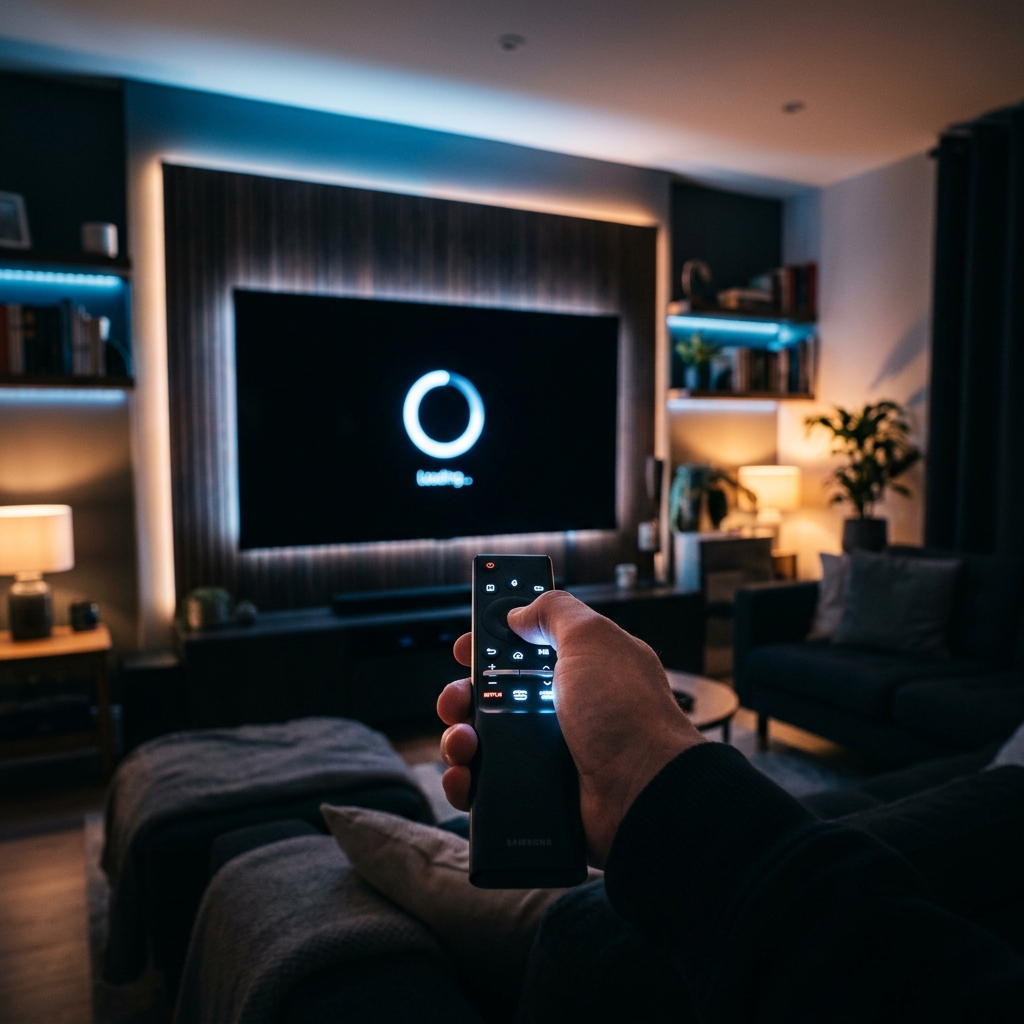
Seeing your IPTV channel list normally but getting stuck on "Loading" when you select a channel can be frustrating.
The good news is that a channel loading problem does not always mean the entire IPTV service is unavailable.
The cause may be your internet connection, Wi-Fi, IPTV application, playlist, server information, account status, device, playback settings, or a problem affecting only the selected channel.
The first step is to determine how many channels are affected.
If only one channel fails, the problem may be specific to that stream.
If every channel fails, the cause is more likely to involve your connection, playlist, application, account, or server, which might be resulting in an IPTV connection timeout.
This guide walks through the most useful checks in order.
Only use IPTV services, accounts, playlists, and streams that you are authorized to access.
IPTV channels not loading troubleshooting guide
First: Identify What Is Happening
Before changing anything, determine the exact behavior.
Scenario 1: One channel will not load
Try several other channels.
If everything else works, the individual stream may be temporarily unavailable.
Scenario 2: Several channels will not load
Look for a pattern.
Are all channels from one category affected?
Are all HD or 4K channels affected?
Are channels from a particular group failing?
Patterns can reveal whether the problem is related to a stream format or server.
Scenario 3: Every channel is stuck loading
Start with:
- Internet connection
- Router
- Playlist
- Server
- Account
- IPTV application
Scenario 4: Channels load but constantly buffer
This is a different problem from a channel refusing to start.
Focus on network stability, available bandwidth, stream bitrate, and device performance.
Scenario 5: Audio works but video does not
The problem may involve video decoding or playback compatibility. For this specific issue, see our guide on what to do when IPTV has sound but no picture.
Quick Diagnosis
Before going through all 20 checks, perform these quick tests:
- Try another channel.
- Restart the IPTV application.
- Restart the device.
- Check whether other internet applications work.
- Test another compatible channel or playlist.
- If permitted, test the same account on another compatible device.
- If possible, compare another permitted network.
These simple tests can quickly separate local problems from channel or provider-side issues.
1. Check Your Internet Connection
Start with your basic connection.
Open websites or another streaming application on the same device.
If other services also fail, your internet connection may be the problem.
If everything else works normally but IPTV channels remain stuck loading, continue to the next checks.
2. Check Wi-Fi Stability
Your device can show a strong Wi-Fi connection while still experiencing instability.
Check for:
- Weak signal
- Frequent disconnects
- High latency
- Speed fluctuations
- Interference
If possible, move the device closer to your router.
For compatible devices, temporarily testing Ethernet can also help determine whether Wi-Fi is responsible.
3. Check Your Network Speed and Stability
A channel may fail to start if the connection cannot consistently handle the stream.
High-resolution channels generally require more bandwidth than lower-resolution streams.
Do not rely only on the maximum speed shown by a speed test.
Stability and latency can matter as well.
Test the connection directly on the affected device.
4. Restart Your Router
A router may occasionally experience a temporary network problem.
Restarting it can clear:
- Temporary connection states
- DNS issues
- Network congestion
- Device connection problems
After the router reconnects, reopen the IPTV application and test the channel again.
5. Restart the IPTV Application
A player can sometimes become stuck while attempting to establish a stream.
Completely close the application.
Then reopen it and try the channel again.
If your device provides a force-stop option, you can use it before reopening the application.
6. Restart Your Streaming Device
Restart the device running IPTV.
This can clear temporary:
- Memory issues
- Network states
- Decoder processes
- Application errors
Restart your Smart TV, Android TV device, Fire TV device, streaming box, smartphone, tablet, or computer.
7. Update the IPTV Application
An outdated IPTV player may have compatibility or playback problems.
Check the official app store or trusted update source used by your device.
Install any available update.
Then restart the application and test the affected channels again.
8. Clear the IPTV App Cache
If your device provides a cache-clearing option, try clearing the application cache.
Temporary application data can occasionally become corrupted.
Start with Clear Cache rather than deleting application data.
Clearing application data may remove:
- Login information
- Playlist configuration
- Application preferences
Only do that if necessary and if you have the required account or playlist information available.
9. Check Your Playlist
If the channel list appears but channels will not start, the playlist may still be part of the problem.
Check:
- Playlist URL
- Server address
- Username
- Password
- Expiration
- Any provider-issued updates
If your authorized provider has supplied a new playlist or server address, use the current information.
Do not randomly change playlist settings.
10. Verify the Server Information
An incorrect server address can allow the application to open while preventing channels from loading.
Compare the server information with the details supplied by your authorized provider.
Check for:
- Typing errors
- Missing characters
- Incorrect domain
- Incorrect port
- Extra spaces
- Outdated server information
Use exactly the information supplied by your authorized service.
11. Check Your Account Status
An IPTV account can remain visible inside an application even when access is no longer active.
Check:
- Account status
- Expiration date
- Device limits
- Account restrictions
If the account has expired, channels may remain listed but fail to load.
If the account is active and channels still fail, continue troubleshooting.
12. Test Another Channel
This is one of the most important checks.
Select several different channels.
If one channel fails while others play normally, the problem may be isolated to that stream.
If every channel fails, investigate your application, playlist, account, network, or server.
Do not immediately delete your configuration because one channel is unavailable.
13. Check Whether a Group of Channels Is Affected
Look for patterns.
For example:
- Only sports channels fail.
- Only HD channels fail.
- Only 4K channels fail.
- Only channels from one category fail.
- Channels from one server fail while others work.
A pattern can indicate a server, format, or stream-specific problem.
14. Check Video Format and Codec Compatibility
Different channels can use different video formats.
A particular device may support one format but have difficulty with another.
If standard HD channels work but certain high-resolution channels remain stuck, the problem may involve:
- Codec support
- Hardware decoding
- Bitrate
- Resolution
- Device capabilities
Testing another compatible player can help identify this.
15. Check IPTV Playback and Decoder Settings
Some IPTV players provide settings for:
- Hardware decoding
- Software decoding
- Hardware acceleration
- Video renderer
- External player
If the application offers different decoding modes, test them one at a time.
Do not change several advanced settings simultaneously.
If the channel starts after changing one decoder option, you have useful evidence about the cause.
16. Test Another Compatible IPTV Player
If your authorized service supports multiple compatible players, test the same channel using another player.
If the channel works:
The original IPTV application may have a playback or compatibility problem.
If the channel still fails:
The problem may be related to the stream, account, network, or provider.
Use trusted application sources and compatible software.
17. Check Device Compatibility
Older or lower-powered devices can struggle with certain streams.
Possible limitations include:
- 4K decoding
- HEVC support
- High-bitrate video
- HDR
- Memory
- Processor performance
If lower-resolution channels work while high-resolution channels fail, your device may be reaching a compatibility or performance limitation.
18. Test Another Compatible Device
If permitted by your service, test the same authorized account on another compatible device.
This is a valuable diagnostic test.
Works on another device: The original device or IPTV application is more likely to be responsible.
Fails on both devices: The issue may involve the account, playlist, network, server, or provider.
19. Test Another Permitted Network
If possible, test the device using another network you are authorized to use.
For example, compare your normal home connection with another available connection.
If channels work on the second network:
The original network may have:
- DNS problems
- Routing problems
- Firewall restrictions
- Wi-Fi instability
- Router issues
If channels fail on both:
The problem may be outside your local network.
20. Determine Whether the Problem Is Provider-Side
After completing the previous checks, consider whether the issue is on the service side.
A provider-side problem becomes more likely when:
- Multiple channels fail.
- The same channels fail on multiple compatible devices.
- Your internet works normally.
- Your account is active.
- Your playlist and server information are correct.
- Other applications work normally.
- The problem started suddenly.
At this point, contact your authorized provider rather than repeatedly changing your device configuration.
IPTV Channels Not Loading: Troubleshooting Table
| Situation | Most Likely Areas to Check |
|---|---|
| One channel won't load | Individual stream |
| Several channels won't load | Server/category/format |
| All channels won't load | Internet, playlist, account, server |
| Channels are stuck on Loading | Network, player, server |
| Channels load then stop | Network, stream, decoder |
| HD works but 4K fails | Device, codec, bandwidth |
| One player fails but another works | Player compatibility |
| Works on another device | Original device/app |
| Works on another network | Router, DNS, network restrictions |
| Playlist loads but channels fail | Server, account, stream |
| Audio works but no video | Decoder, codec, playback |
| Problem started suddenly | Server, account, app update |
When Should You Contact Your IPTV Provider?
Contact your authorized provider when:
- Multiple channels are affected.
- Your internet works normally.
- Your account is active.
- Your playlist is current.
- Your server information is correct.
- You tested another compatible device where permitted.
- The same channels continue failing.
Give the provider useful information.
Include:
- Device model
- IPTV application
- Affected channel names
- Exact error message
- Approximate time the problem started
- Whether all channels or only some channels are affected
- Whether another compatible device was tested
- Whether your internet works normally
This is much more useful than simply reporting that IPTV is not working.
What You Should Avoid
Do not:
- Randomly change server URLs.
- Delete a working playlist without keeping the required information.
- Install modified IPTV applications from unknown sources.
- Change several playback settings simultaneously.
- Assume the entire service is down because one channel fails.
- Assume every channel problem is caused by internet speed.
- Share account credentials publicly.
Make one change at a time and test the result.
Frequently Asked Questions
Why are my IPTV channels not loading?
Possible causes include internet problems, unstable Wi-Fi, an IPTV application issue, playlist problems, account status, server problems, device compatibility, or an issue with the individual channel.
Why does my IPTV show channels but they won't play?
The channel list and the actual streams are separate parts of the service. Your playlist can load correctly while the stream connection fails.
Why does only one IPTV channel not work?
The individual stream may be temporarily unavailable or have a format or encoding problem. Test several other channels before changing your entire configuration.
Why are all IPTV channels stuck loading?
Check your internet connection, router, IPTV application, playlist, account status, and server information. If all of those are correct, the issue may be provider-side.
Why do some IPTV channels work while others don't?
Different channels can use different servers, codecs, resolutions, and stream configurations. A problem affecting one group does not necessarily affect the entire service.
Why does IPTV work on one device but not another?
The devices may use different applications, decoders, operating systems, network connections, or hardware capabilities.
Why does IPTV work on another network?
Your normal network may have a DNS, routing, firewall, router, or Wi-Fi problem.
Why are 4K IPTV channels not loading?
4K channels generally require greater device and network capabilities. Codec support, hardware decoding, bandwidth, HDMI compatibility, or device limitations may be involved.
Should I reinstall my IPTV app?
Not immediately. Try restarting the app, updating it, clearing its cache, and checking your configuration first.
When should I contact my IPTV provider?
If multiple channels fail across compatible devices while your internet and account are working normally, the provider may need to investigate the server or streams.
Conclusion
When IPTV channels are not loading, the most important first step is to determine whether the problem affects one channel, several channels, or the entire channel list.
A single failed channel may simply have a temporary stream problem.
Several affected channels may point toward a server, category, codec, or account issue.
If every channel remains stuck loading, investigate your internet connection, router, IPTV application, playlist, server information, and account status.
Testing another compatible player, device, or permitted network can help isolate the source of the problem.
If your local setup appears healthy and the same channels continue to fail across multiple compatible devices, contact your authorized provider with detailed information about the problem.
A systematic approach is usually faster and safer than changing multiple settings at once.
Related Articles: