
IPTV Connection Timeout: Causes and How to Fix It
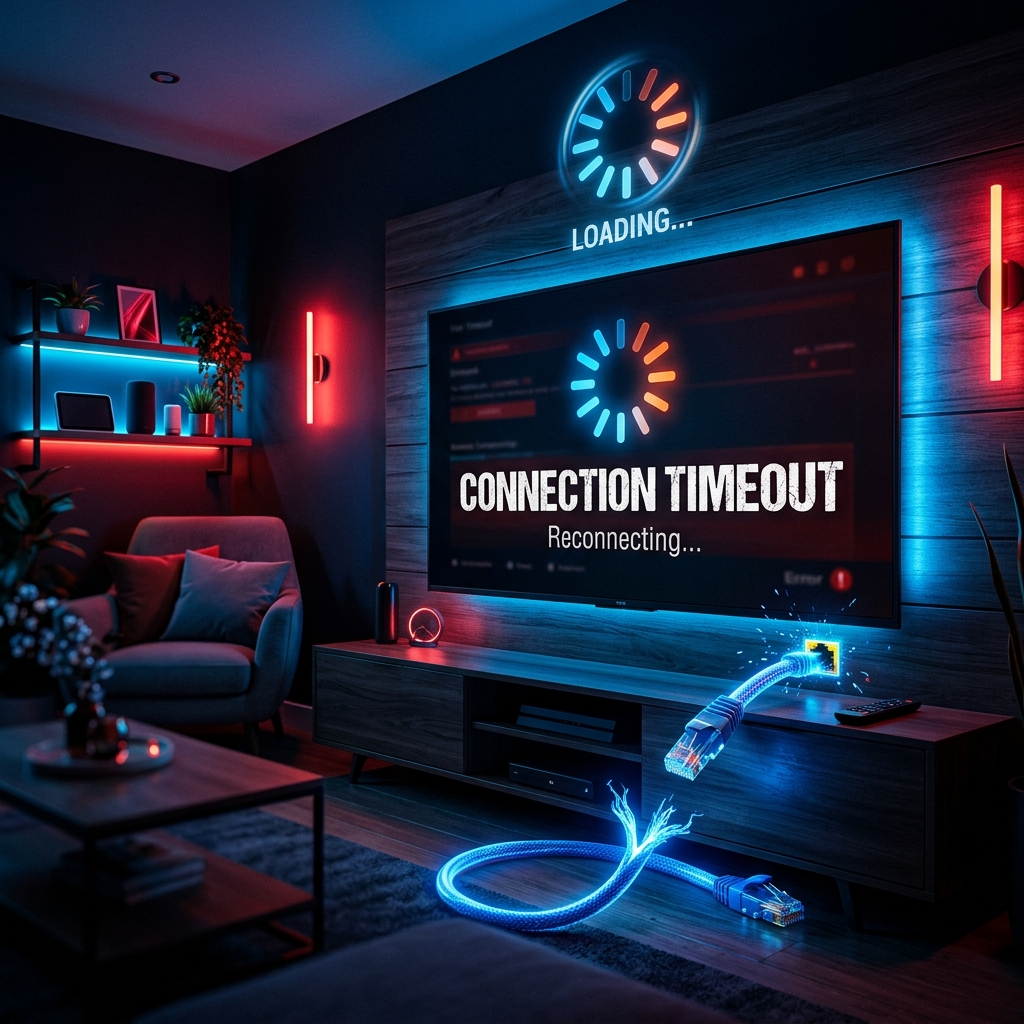
An IPTV connection timeout usually means your IPTV application tried to connect to a server but did not receive a response within the expected amount of time.
The message may appear as:
- "Connection timed out"
- "Server timeout"
- "Request timed out"
- "Unable to connect"
- "Server not responding"
A timeout does not automatically mean your internet is down. Often, it just means the IPTV channels are not loading properly from the server.
Your internet may work perfectly for websites, YouTube, or other streaming services while the IPTV connection still fails.
The problem can be caused by your network, Wi-Fi, router, DNS settings, IPTV application, playlist, server URL, account, device, or the IPTV server itself.
This guide explains how to identify the cause and troubleshoot the problem step by step.
Only use IPTV services, accounts, playlists, and streams that you are authorized to access.
IPTV connection timeout troubleshooting guide
First: What Does an IPTV Connection Timeout Mean?
A timeout occurs when your device sends a connection request but does not receive the expected response quickly enough.
For IPTV, the connection can involve:
- Your device
- Your IPTV application
- Your local network
- Your internet connection
- DNS resolution
- The server address
- The IPTV server
A failure at any point can result in a timeout.
This is why it is important to determine where the connection is failing instead of immediately assuming the IPTV server is offline.
Quick Diagnosis
Before changing settings, perform these quick tests.
Test 1: Check another website
If websites and other online applications work normally, your general internet connection is probably available.
Test 2: Test another IPTV channel or playlist
If some content connects while another does not, the problem may be specific to the affected server or stream.
Test 3: Test another compatible device
If the same account connects on another device, the original device or application may be responsible.
Test 4: Test another permitted network
If the connection works on another network but not your home network, the problem may involve your router, DNS, firewall, or network configuration.
1. Check Your Internet Connection
Start with the simplest possibility.
Open a browser on the same device and visit several websites.
Also test another streaming application.
If other services cannot connect, troubleshoot your internet connection first, or see our general 20 things to check when IPTV is not working.
If everything else works normally but IPTV times out, continue with the next steps.
2. Check Wi-Fi Stability
A device can remain connected to Wi-Fi while the connection itself is unstable.
Check:
- Wi-Fi signal strength
- Random disconnections
- Large latency spikes
- Slow page loading
- Network interruptions
If possible, move the device closer to the router.
For devices that support Ethernet, temporarily testing a wired connection can also help isolate Wi-Fi problems.
3. Restart Your Router
Routers can occasionally experience temporary connection or DNS problems.
To test this:
- Turn off the router.
- Wait briefly.
- Turn it back on.
- Wait for the internet connection to return.
- Test the IPTV application again.
If the timeout disappears after the restart, the router may have been experiencing a temporary issue.
4. Check for Network Congestion
A busy network can affect connection reliability.
Check whether several devices are simultaneously:
- Downloading large files
- Streaming high-resolution video
- Uploading data
- Running cloud backups
- Installing updates
Temporarily disconnect unnecessary devices and test IPTV again.
5. Verify the Server URL
An incorrect server address can prevent the IPTV application from establishing a connection.
Compare the server information with the details supplied by your authorized provider.
Check for:
- Misspelled domain
- Missing characters
- Extra spaces
- Incorrect protocol
- Incorrect port
- Incorrect path
Do not guess the server address.
Use exactly the information supplied by your authorized service.
6. Check the Port
Some IPTV services use a specific port as part of their server address.
If the port is incorrect, the application may fail to connect even though your internet connection works.
Compare the port with the information provided by your authorized provider.
Do not randomly change ports.
7. Verify Your M3U Playlist URL
If you use an M3U playlist, verify that the URL is correct and current.
A timeout can occur if:
- The URL is incorrect.
- The playlist has expired.
- The provider changed the server.
- Credentials embedded in the URL are invalid.
- The URL contains a typing error.
If your provider supplied an updated playlist, use the current information rather than repeatedly testing an old URL.
8. Recheck Your Username and Password
Incorrect login details can sometimes appear as connection or authorization failures.
Check:
- Username
- Password
- Capitalization
- Numbers
- Special characters
- Spaces
If you copied the credentials, make sure you did not accidentally include spaces at the beginning or end.
If the credentials are correct but the connection still times out, continue troubleshooting.
9. Check Your Account Status
An expired or restricted account may prevent access to the service.
Check whether your authorized account is:
- Active
- Expired
- Restricted
- At a device limit
- Awaiting renewal
If the account is active but connections continue to time out, the provider may need to investigate.
10. Restart the IPTV Application
A temporary application error can interfere with network connections.
Completely close the IPTV player.
Then reopen it and test again.
If your device provides a force-stop option, you can use it before reopening the application.
11. Update the IPTV Application
An outdated application may have compatibility problems with newer device software or server configurations.
Check the official application store or trusted update source.
Install any available update.
Then restart the application and test the connection again.
12. Restart the Device
Restarting the device can clear temporary network and application states.
This can help with:
- Stuck network connections
- DNS cache issues
- Application processes
- Temporary system errors
Restart your Smart TV, Android TV device, Fire TV device, streaming box, phone, tablet, or computer.
13. Check DNS Problems
DNS translates domain names into IP addresses.
If DNS resolution is failing, the IPTV application may be unable to locate the server correctly.
You may notice that:
- Websites load slowly or inconsistently.
- Some services work while others do not.
- The IPTV server cannot be reached by its domain name.
If your device or router supports custom DNS settings, you can test a reliable DNS service.
Do not change DNS settings unnecessarily if your network is already working correctly.
14. Temporarily Test Without a VPN or Proxy
VPNs and proxies can sometimes affect server connectivity.
They may introduce:
- Additional latency
- Routing differences
- Connection filtering
- DNS changes
- Compatibility issues
If you are using a VPN or proxy, temporarily disconnect it and test the IPTV connection directly.
If the timeout disappears, the VPN or proxy configuration may be contributing to the problem.
Only use network configurations that comply with your provider's terms and applicable rules.
15. Check Firewall or Network Restrictions
Some networks may restrict connections to certain destinations or ports.
This can happen on:
- Managed networks
- Corporate networks
- School networks
- Public Wi-Fi
- Certain routers
If IPTV works normally on another permitted network but not your usual network, network restrictions may be involved.
Do not disable security protections permanently just to make a connection work.
16. Check Device Date and Time
Incorrect system time can cause unexpected application and connection problems.
Open the device settings and verify:
- Date
- Time
- Time zone
Enable automatic date and time when available.
Then restart the IPTV application.
17. Check Your Device Software
Outdated operating systems can cause compatibility issues.
Check for official updates for your:
- Smart TV
- Android TV device
- Fire TV device
- Smartphone
- Tablet
- Streaming box
Install available updates and test IPTV again.
18. Test Another Compatible Device
This is one of the best diagnostic tests.
Use the same authorized account or playlist on another compatible device if permitted.
If it works on the second device:
The problem may be related to:
- Original device
- Original application
- Device network configuration
- Device software
If it fails on both:
The issue may involve:
- Account
- Playlist
- Server
- Network
- Provider
19. Test Another Permitted Network
If possible, compare your normal connection with another network you are authorized to use.
For example, you may test the compatible device using another available connection.
If IPTV works on the second network, your normal network may be responsible.
Possible causes include:
- DNS
- Router configuration
- Firewall
- Network restrictions
- Routing problems
20. Determine Whether the IPTV Server Is Down
After checking your local setup, consider the possibility of a server-side problem.
A provider-side issue becomes more likely when:
- Your internet works normally.
- Other online services work.
- Your credentials are correct.
- Your playlist information is correct.
- Multiple compatible devices experience the same timeout.
- The problem started suddenly.
- Other users of the same authorized service are reporting the same issue.
At this point, contacting the authorized provider is appropriate.
IPTV Connection Timeout Troubleshooting Table
| Problem | What to Check First |
|---|---|
| IPTV timeout on one device | App, device, Wi-Fi |
| IPTV timeout on all devices | Account, server, provider |
| Websites work but IPTV times out | Server, playlist, DNS |
| All internet services fail | Internet/router |
| M3U connection times out | Playlist URL and account |
| Login causes timeout | Credentials and account status |
| Works on another network | Router, DNS, firewall |
| Works on another device | Original device or app |
| Timeout after VPN connection | VPN routing/DNS |
| Timeout after app update | App compatibility |
| Timeout after device update | System compatibility |
| Server suddenly stops responding | Provider-side issue |
When Is an IPTV Timeout Probably a Provider Problem?
It is difficult to know immediately whether a server is down.
However, the possibility becomes stronger if you have already confirmed:
- Your internet is working.
- Your router is working.
- The IPTV application is updated.
- The server URL is correct.
- The M3U playlist is current.
- Your account is active.
- You tested another compatible device.
- The same server times out repeatedly.
At that point, changing random settings is unlikely to help.
Contact your authorized provider and provide the exact error message.
What Information Should You Give Your Provider?
Instead of simply saying:
"IPTV isn't working."
Provide useful details such as:
- Device model
- IPTV application
- Exact error message
- Time the problem started
- Server or playlist affected
- Whether all channels are affected
- Whether the account is active
- Whether another compatible device was tested
- Whether another permitted network was tested
This makes troubleshooting much easier.
What Not to Do
Do not:
- Randomly change server URLs.
- Guess ports.
- Repeatedly delete and recreate playlists.
- Install suspicious IPTV applications.
- Disable firewall protections permanently.
- Share account credentials with strangers.
- Change multiple network settings at once.
- Assume every timeout means the provider is offline.
Make one change at a time and test the result.
Frequently Asked Questions
What does IPTV connection timeout mean?
It generally means the IPTV application attempted to connect to a server but did not receive the expected response within the required time.
Why does IPTV timeout while the internet works?
Your general internet connection can work normally while a particular IPTV server, port, DNS lookup, playlist, or route has a problem.
Why does my IPTV M3U playlist keep timing out?
Possible causes include an incorrect playlist URL, expired account, server problem, DNS issue, or network restriction.
Why does IPTV work on another network?
This usually suggests that something about your normal network may be affecting the connection, such as DNS, routing, firewall rules, Wi-Fi, or router configuration.
Why does IPTV work on my phone but not my TV?
The two devices may use different applications, network configurations, software versions, or connection methods.
Can a VPN cause IPTV connection timeout?
A VPN can sometimes change routing, DNS, and latency. Temporarily testing without the VPN can help determine whether it is contributing to the problem.
Can DNS cause IPTV connection problems?
Yes. If the domain name cannot be resolved correctly, the application may not be able to reach the intended server.
Should I change my DNS?
Changing DNS can be useful as a diagnostic step when domain resolution appears to be the problem, but it is not necessary for every IPTV timeout.
How do I know if the IPTV server is down?
If your internet works, your account and playlist are correct, and the same server times out on multiple compatible devices and networks, a server-side problem becomes more likely.
Should I reinstall my IPTV app?
Reinstallation can help with corrupted application data, but first try restarting, updating, and checking your configuration.
Conclusion
An IPTV connection timeout does not automatically mean your internet is broken or that the IPTV provider is offline.
The problem can occur anywhere between your device and the IPTV server.
Start with your internet connection and Wi-Fi, then check the router, server URL, port, M3U playlist, credentials, account status, IPTV application, DNS, VPN, firewall restrictions, and device software.
Testing another compatible device or permitted network is especially useful because it helps separate local problems from server-side problems.
If the same connection continues to time out after your local setup has been checked, contact your authorized provider with the exact error message and details of the tests you performed.
A systematic approach can save time and prevent unnecessary changes to a configuration that may otherwise be working correctly.
Related Articles: