How to Set Up IPTV on Smart TV in 2026: Complete Step-by-Step Guide
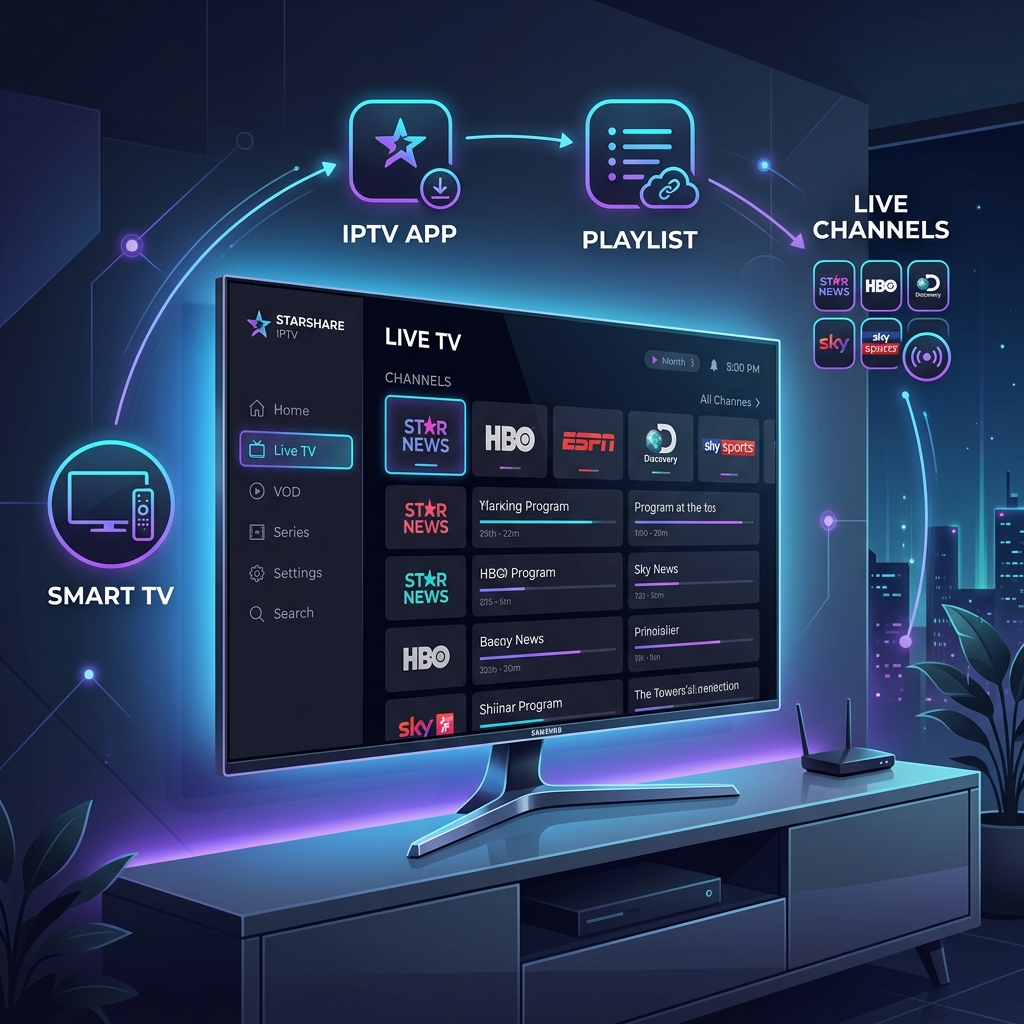
I have a Smart TV and an IPTV subscription. How do I actually get IPTV working?
If you are new to IPTV, the initial setup can seem slightly confusing. Unlike traditional cable television where a technician plugs a box into your wall, IPTV puts you in control.
The basic process is entirely straightforward once you understand the core components. To watch live television, you simply need to:
- Choose a compatible IPTV player for your television.
- Install the player application from your TV's app store.
- Add the credentials supplied with your IPTV service (usually an M3U URL or Xtream Codes).
- Add the EPG (TV Guide) if supported by your application.
- Load the playlist.
- Start watching.
In this comprehensive tutorial, we will walk you through exactly how to set up Starshare IPTV on your Smart TV, covering different television brands, required applications, and common troubleshooting steps.
🚀 Get the Best Streaming Experience with Starshare IPTV!
Stop dealing with complicated setups and constant buffering. Upgrade to Starshare IPTV today and enjoy stable 4K, Full HD, and HD streams with our premium infrastructure.
Quick Start: Set Up IPTV on a Smart TV
If you want to get started immediately, here is the fastest way to get your television connected:
Smart TV ↓ Install IPTV app (e.g., Smart IPTV, IPTV Smarters) ↓ Enter Starshare IPTV credentials (from your welcome email) ↓ Add M3U / supported login method ↓ Add EPG if available ↓ Load channels ↓ Start streaming
For detailed, step-by-step guidance on each of these phases, continue reading below.
What You Need Before Setting Up IPTV
Before you sit down in front of your television, ensure you have everything required for a smooth setup process:
- Compatible Smart TV: A relatively modern television that supports downloading applications.
- Stable internet connection: A reliable home network capable of streaming video.
- IPTV player app: The software you will install on your TV to play the content.
- Active IPTV subscription: An active service plan with your provider.
- Login/playlist information: The details provided to you upon signing up.
- M3U URL where applicable: The secure playlist link containing your channels.
- EPG URL where applicable: The link providing your electronic program guide.
- Remote control: Your television remote or a compatible air mouse.
It is important to remember that exact application availability differs wildly depending on your television platform. An app available on a Samsung TV might not exist on a Sony TV.
Which Smart TVs Can Run IPTV?
Most modern Smart televisions can run IPTV applications, but the method varies based on the underlying operating system.
- Samsung Smart TVs: These run the Tizen operating system and have a specific library of compatible IPTV players in the Samsung App Store.
- LG Smart TVs: These run webOS and support several excellent IPTV applications available directly through the LG Content Store.
- Sony Smart TVs: Modern Sony televisions usually run Android TV or Google TV, giving them access to the massive Google Play Store library of IPTV apps.
- Android/Google TV devices: Televisions from TCL, Hisense, and Philips often run Android TV, providing excellent compatibility with modern streaming apps.
Do not assume every Smart TV model supports every IPTV app. Application availability strictly depends on your TV's operating system, release year, regional restrictions, and the current state of the manufacturer's app store.
How to set up IPTV on a Smart TV in 2026
Step 1: Choose an IPTV Player
An IPTV player is essentially an empty media player. By itself, it contains no channels, no movies, and no content. It is simply the interface you use to load and play the content provided by your IPTV service.
The current official Starshare IPTV Setup Guide specifically references several widely used and highly compatible players:
- Smart IPTV: A classic, reliable player heavily used on Samsung televisions.
- IPTV Smarters / IPTV Smarters Pro: One of the most popular, user-friendly players globally, excellent for LG TVs and Android devices.
- SS IPTV: Another capable alternative available on multiple Smart TV platforms.
When setting up your service, you only need to choose one of these players.
Step 2: Install the IPTV App on Your Smart TV
Regardless of your television brand, the general application installation procedure is similar:
- Open your television's native app store.
- Navigate to the search function.
- Search for a supported IPTV application (e.g., "IPTV Smarters" or "Smart IPTV").
- Select the application from the search results.
- Install it onto your television.
- Open the application to begin configuration.
Below are more specific instructions based on the three most common Smart TV brands.
How to Set Up IPTV on Samsung Smart TV
Samsung televisions are incredibly popular for streaming. According to verified project information, Smart IPTV is commonly used on Samsung devices.
- Turn on your Samsung television and press the Smart Hub button on your remote.
- Open the Apps panel (the Samsung app store).
- Select the Magnifying Glass icon to search.
- Type "Smart IPTV" into the search bar.
- Locate the compatible IPTV player and select Install.
- Once installed, open the application.
- The app will display a MAC address on the screen. Write this down.
- Navigate to the app developer's website on your computer or phone.
- Enter your TV's MAC address and your supplied playlist details to link your television to your subscription.
How to Set Up IPTV on LG Smart TV
LG televisions running webOS are excellent for IPTV. The existing Starshare setup guide identifies IPTV Smarters or SS IPTV as common options for LG.
- Press the Home button on your LG remote.
- Open the LG Content Store.
- Select the Search icon at the top of the screen.
- Search for "IPTV Smarters" or a supported alternative.
- Select the application and choose Install.
- Open the application once the installation finishes.
- Add your supplied credentials (usually via the Xtream Codes API login or by adding the M3U playlist).
- Load the playlist to begin watching.
How to Set Up IPTV on Sony Smart TV
Because most modern Sony Smart TVs use Android TV or Google TV, they have excellent application compatibility.
- Navigate to the Home screen on your Sony TV.
- Open the Google Play Store.
- Select the Search icon.
- Search for your preferred player, such as "IPTV Smarters Pro" or "TiviMate".
- Install the application.
- Open the app and enter the credentials supplied in your welcome email.
Remember that older Sony Smart TVs that do not run Android TV will have a much smaller, proprietary app store, which may limit your player choices.
📺 Discover the Starshare IPTV Difference!
Gain access to an incredibly massive channel lineup, a massive VOD library, and excellent 24/7 support. Transform your television into the ultimate entertainment hub.
Step 3: Add Your Starshare IPTV M3U URL
An M3U playlist is essentially a long text file containing the web addresses of every live channel, movie, and series in your subscription.
When you subscribe, the secure M3U URL is provided through your welcome email.
The general process for adding an M3U URL is:
- Open your newly installed IPTV app.
- Select the option to Add Playlist, Add User, or Add M3U URL.
- Carefully enter the exact M3U URL provided in your welcome email. (It is usually best to do this via the player's companion website or a companion mobile app if typing on a TV remote is tedious).
- Enter a requested playlist name if prompted (e.g., "Starshare IPTV").
- Save the configuration.
- Wait for the application to download and process the playlist.
Important Security Note: Never expose your actual M3U URL on public forums, and never share your credentials with anyone outside of authorized support.
Step 4: Add the EPG URL
EPG stands for Electronic Program Guide. It is the digital TV guide that shows program information, displays upcoming channel schedules, and makes browsing content significantly easier.
The EPG URL is also included in your welcome email.
In most modern apps, you can enter the EPG URL in the settings menu right next to where you entered the M3U URL. While the EPG dramatically improves the user experience, it is entirely optional. If an application does not support an EPG, the live channels will still play normally.
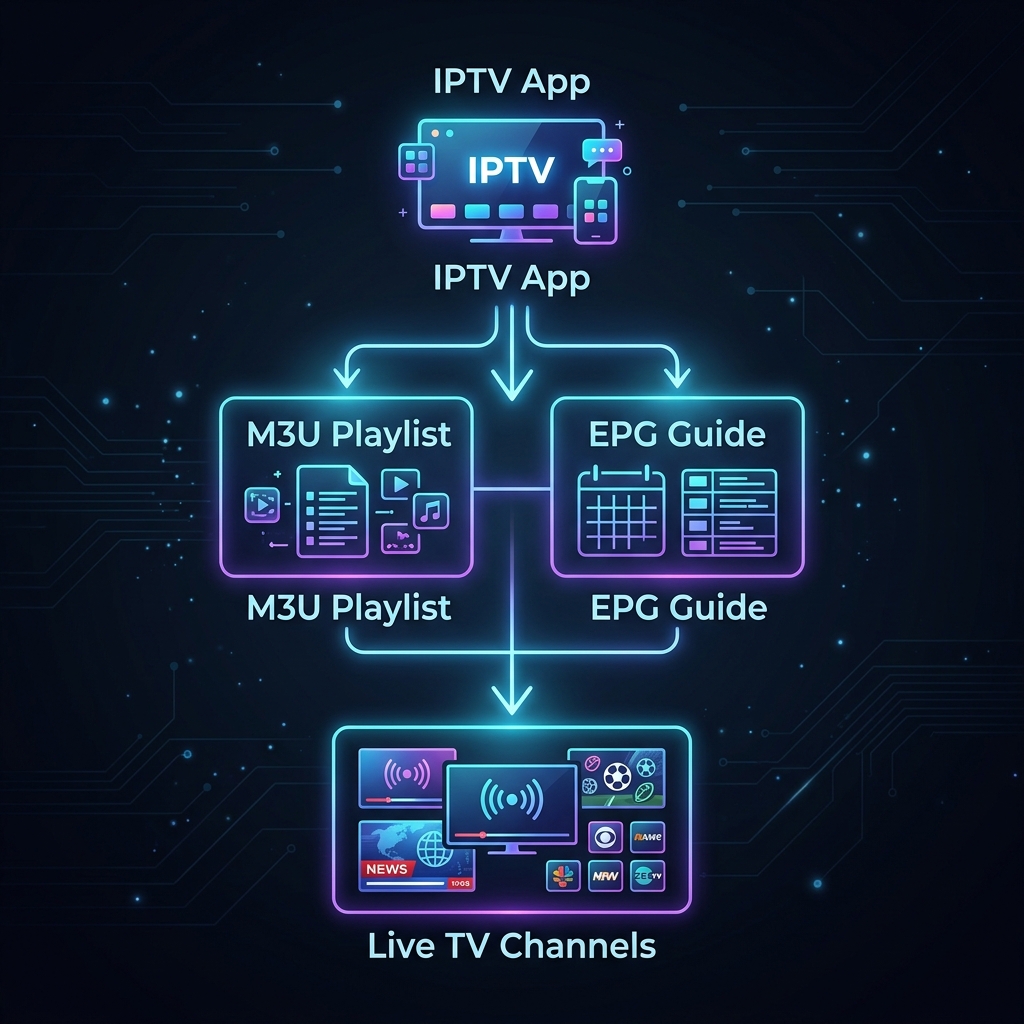 M3U playlist and EPG setup for IPTV on Smart TV
Step 5: Set Up IPTV Using Xtream Codes
Many modern players (like IPTV Smarters) allow you to set up your service using the Xtream Codes API method instead of typing out a massive M3U URL.
This method requires three pieces of information:
- Server / Portal URL
- Username
- Password
If your welcome email provides these details, simply select "Login with Xtream Codes API" in your player app, enter the three values exactly as provided, and click login. This is often the easiest and fastest way to connect on a Smart TV.
Step 6: Load Your IPTV Channels
Once you have saved your credentials or URL:
- Save the settings and return to the player's main menu.
- Some applications require you to click a specific "Refresh" or "Update Playlist" button.
- Wait for the playlist to load. For large subscriptions, this initial download can take a minute or two.
- Once completed, you will see categories populate on your screen (e.g., Live TV, Movies, Series).
Step 7: Start Watching IPTV
Your setup is now complete!
- Open the Live TV section.
- Browse the provided categories (e.g., Sports, News, Entertainment).
- Select a channel to test playback.
- Access the EPG by pressing the relevant guide button on your remote.
- Press the back button or return button on your remote to exit the stream and return to the channel list.
Because every IPTV player interface is different, take a few minutes to explore the menus, settings, and navigation shortcuts of the specific app you installed.
How Fast Should Your Internet Be for IPTV?
Before you finalize your setup, ensure your home network is capable of handling live streaming video. Here are practical recommendations for a stable experience:
- SD (Standard Definition): around 5 Mbps+
- HD (High Definition): around 10 Mbps+
- Full HD (1080p): around 15 Mbps+
- 4K (Ultra HD): around 25 Mbps+
These are practical recommendations, not universal technical requirements. A stable 30 Mbps connection with zero packet loss is far better for live streaming than an unstable 100 Mbps connection.
For a complete breakdown of bandwidth requirements, multiple device usage, and latency, read our comprehensive guide: What Internet Speed Do You Need for IPTV in 2026? Complete Guide.
Wi-Fi or Ethernet: Which Is Better for IPTV?
When connecting your Smart TV to your home network, you have two options.
Wi-Fi:
- Extremely convenient.
- Easy to install without running cables.
- Heavily dependent on signal quality, distance from the router, and wireless interference.
Ethernet (Wired Cable):
- Usually more consistent for a fixed television setup.
- Less affected by wireless interference from neighboring networks or appliances.
- Excellent for troubleshooting buffering issues.
Ethernet is not mandatory, and many users enjoy perfect playback on Wi-Fi. However, if your TV is right next to your router, plugging in an Ethernet cable guarantees the most stable connection possible.
How to Optimize IPTV on Your Smart TV
To ensure you get the absolute best performance out of your television, follow these optimization tips:
- Keep TV software updated: Regularly check your TV's settings for system updates.
- Keep IPTV player updated: Ensure your player app is running the latest version from the app store.
- Use a stable network: Prevent large background downloads on other devices while watching live sports.
- Prefer Ethernet when convenient: Hardwire your TV if possible.
- Restart the TV if the app becomes unstable: Unplugging the TV for 30 seconds clears the memory cache.
- Keep sufficient storage: Do not fill your TV's internal storage with unnecessary apps; leave room for the IPTV app cache.
- Close unnecessary apps: Exit applications completely instead of just pressing the home button.
- Keep the TV well ventilated: Overheating can cause internal processors to throttle, leading to skipped frames.
- Use appropriate video quality: If your internet is struggling, switch from a 4K channel to a Full HD channel.
- Keep your IPTV credentials secure: Do not share your login details, as simultaneous connections from unauthorized locations may result in an automatic ban.
Common IPTV Smart TV Setup Problems
If things do not go perfectly on your first try, do not panic. Most setup issues are easily resolved.
IPTV app cannot be found
If you cannot find the recommended app in your TV's store, it may not be available for your specific TV platform, your television model might be too old, or there may be regional restrictions in place. Search for highly rated alternatives within your TV's native store.
Playlist will not load
This usually indicates an incorrect URL, a typo in the credentials, a temporary connection problem, or a strict firewall blocking the connection. Double-check every character in your M3U URL.
EPG is empty
An empty TV guide can be caused by an incorrect EPG URL, the player not supporting that specific EPG format, or a temporary server delay. Sometimes, simply pressing "Refresh EPG" in the app settings fixes this.
Channels load but do not play
If the channel list appears but the video times out or stays black, you might be experiencing a codec issue or a blocked connection. Read our guide on IPTV Channels Not Loading: Causes and Step-by-Step Fixes for deeper diagnostics.
IPTV buffers
If the video plays for a few minutes and then repeatedly pauses, you are likely dealing with network instability. Check out our dedicated troubleshooting guide: IPTV Buffering After a Few Minutes: Causes and Solutions.
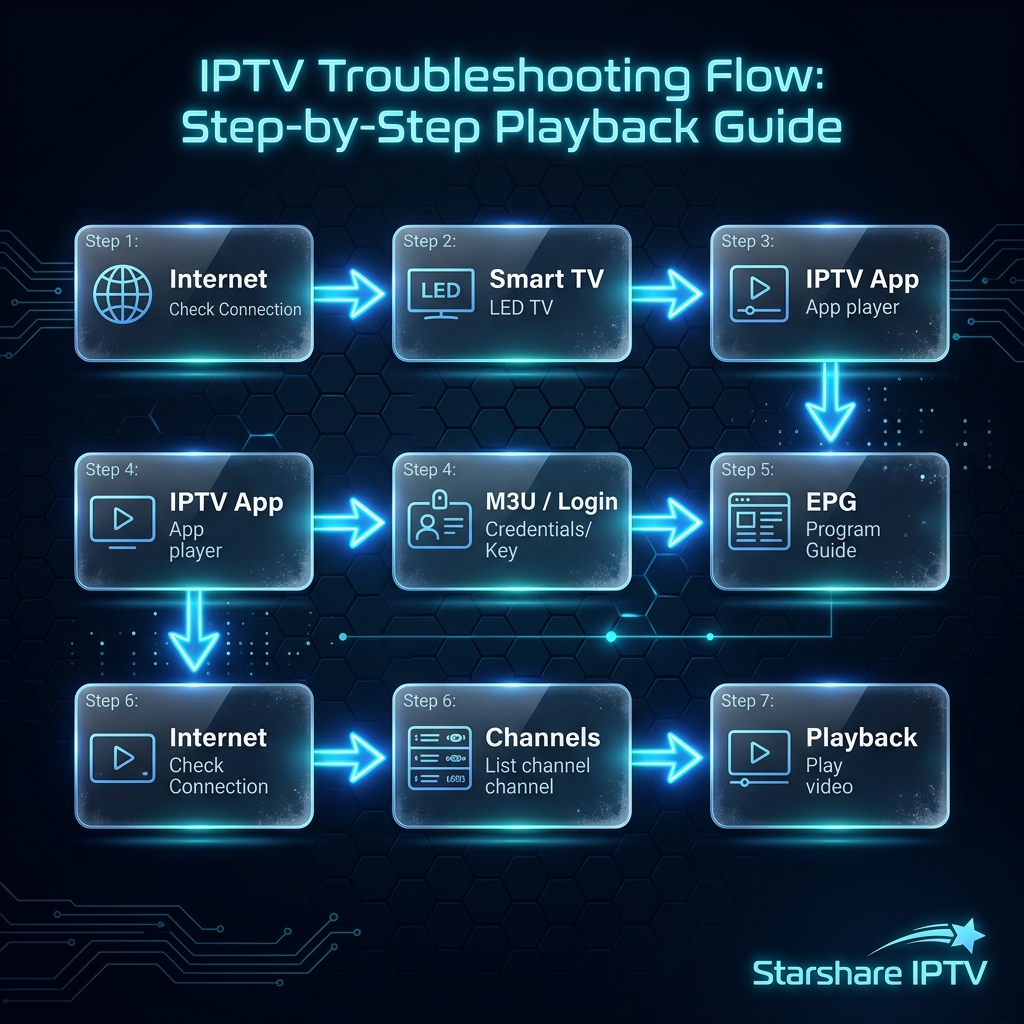 Smart TV IPTV setup and troubleshooting flow
IPTV Smart TV Setup Troubleshooting Checklist
If you are stuck during the setup process, run through this quick diagnostic checklist:
- Check your internet connection on the television.
- Confirm the IPTV app is actually supported by your TV's operating system.
- Confirm your credentials (username/password) were entered exactly as provided, observing uppercase/lowercase letters.
- Recheck the M3U URL for missing characters or accidental spaces.
- Recheck the EPG URL.
- Restart the IPTV application entirely.
- Restart the Smart TV (unplug it from the wall for 30 seconds).
- Restart your internet router.
- Test another channel to ensure it is not a localized broadcast issue.
- Test another supported player from the app store.
- Check for application updates.
- Check for TV software updates.
- Test an Ethernet connection if your Wi-Fi signal is weak.
- Contact Starshare IPTV support if the issue persists across all apps and networks.
Setting Up Starshare IPTV on Your Smart TV
When you choose the Starshare IPTV service, the setup process is designed to be as frictionless as possible.
We fully support modern Smart TVs across all major brands. As outlined in the official Starshare IPTV Setup Guide, the official setup flow involves:
- Navigating to your TV's app store.
- Completing your chosen IPTV player installation.
- Entering your provided M3U playlist URL or Xtream Codes.
- Entering your EPG URL (included in your welcome email).
- Enjoying seamless streaming.
All required credentials and URLs are securely delivered directly to your inbox following your subscription activation. We do not require complicated sideloading or risky third-party jailbreaks for standard Smart TV functionality.
If you require assistance at any point during your Starshare IPTV Smart TV setup, our support team is available 24/7 to help you configure your specific television model.
Frequently Asked Questions About IPTV on Smart TV
Can I install IPTV directly on a Smart TV?
Yes. Most modern Smart TVs have dedicated app stores where you can download compatible IPTV player applications directly, without needing an external box.
Which Smart TVs support IPTV apps?
Samsung (Tizen), LG (webOS), and Sony/Philips (Android TV/Google TV) offer excellent support for IPTV applications.
How do I install IPTV on Samsung Smart TV?
Open the Samsung Apps panel, search for "Smart IPTV" or a similar supported application, install it, and use your MAC address to upload your playlist via the developer's website.
How do I install IPTV on LG Smart TV?
Navigate to the LG Content Store, search for a player like IPTV Smarters or SS IPTV, install it, and enter your provided credentials.
How do I install IPTV on Sony Smart TV?
If your Sony TV runs Android TV, open the Google Play Store, search for a player like TiviMate or IPTV Smarters Pro, and install it directly.
What is an M3U URL?
It is a long web address linking to a text file that contains the streaming locations of all the live channels and VOD content in your subscription.
Where can I find my Starshare IPTV M3U URL?
Your secure M3U URL is delivered to you in your welcome email immediately after your account is activated.
What is an EPG URL?
It is the web address that provides the Electronic Program Guide data, populating your channel list with current and upcoming show schedules.
Is EPG required for IPTV?
No. An EPG is highly recommended for an excellent user experience, but live channels will still play perfectly without one.
Can I use Xtream Codes on Smart TV?
Yes, if your chosen IPTV player (like IPTV Smarters) supports the Xtream Codes API, you can log in using a server URL, username, and password instead of an M3U link.
Why is my IPTV playlist not loading?
This is typically caused by entering the URL incorrectly, having a typo in the password, or encountering a temporary network connection error.
Why are IPTV channels buffering on my Smart TV?
Buffering is most commonly caused by an unstable Wi-Fi connection, insufficient bandwidth, or the television running out of processing memory.
What should I do if my IPTV app is not available?
App availability changes based on region and TV model. If a specific app is missing, search your TV's app store for alternative highly rated IPTV players.
How do I contact Starshare IPTV support?
You can reach our dedicated support team 24/7 by visiting the Contact page on our website for prompt assistance with your setup.
Final Thoughts
Setting up IPTV on a Smart TV is a quick process once you understand the relationship between the television, the player app, and the subscription credentials.
By following this guide, you should be able to:
- Confirm your Smart TV compatibility.
- Install a supported IPTV player.
- Add the supplied credentials.
- Add the M3U playlist where applicable.
- Add the EPG where supported.
- Load the playlist.
- Start watching.
- Troubleshoot network or app issues if necessary.
Whether you are using a Samsung, LG, or an Android-based Sony TV, the ultimate goal is simple: install a player and feed it your credentials. Once configured, you can enjoy thousands of channels, movies, and series seamlessly.
If you are ready to begin, head over to the official Starshare IPTV Setup Guide or check out our FAQ for more details.
Related Articles:
- Best Devices for IPTV Streaming in 2026
- IPTV Not Working: 20 Things to Check Before Contacting Your Provider
- IPTV vs Streaming Services: What’s the Difference in 2026?
- IPTV Connection Timeout: Causes and How to Fix It
- IPTV Has Sound but No Picture: Complete Troubleshooting Guide
- What Internet Speed Do You Need for IPTV in 2026?